Enable Edge Internet Explorer Compatibility Mode for GNL JES Position Description Questionnaire
Effective June 15, 2022 Microsoft is no longer supporting Internet Explorer 11
(Internet Explorer help (microsoft.com)).
From this date forward, it is Microsoft’s recommendation that people use their
Edge browser.
In order access the GNL JES Position Description Questionnaire, you must configure
your Microsoft Edge browser to use Internet Explorer Compatibility Mode.
Please follow the steps below to in order to enable compatibility mode.
-
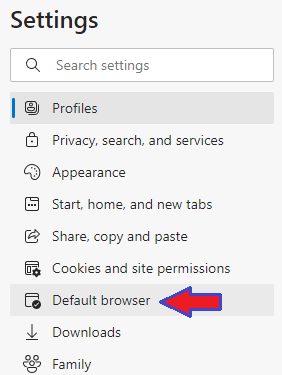
Open the Microsoft Edge Browser settings and set Allow sites to be reloaded in Internet Explorer mode
to Allow. You can open the browser settings by
- Typing edge://settings/defaultBrowser in the address bar and pressing Enter, or
-
Use the Edge menus
-
Click on the ellipsis in the top right corner of the browser

-
Open the Settings

-
Select Default Browser from the Settings menu on the left side of the screen
-
Change the Allow sites to be reloaded in Internet Explorer mode to
Allow

-
If prompted to restart your Browser please do so now.

-
If the Setting Browser tab is still open, please close it.

-
Open the GNL JES Position Description Questionnaire site
Position Description Questionnaire - Login (gov.nl.ca)
-
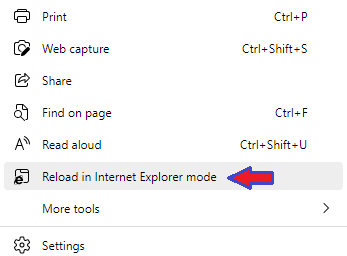
Reload the site in Internet Explorer mode by
-
Click on the ellipsis in the top right corner of the browser

-
Click on reload in Internet Explorer mode.
-
The site will reload in Internet Explorer Mode. You will see the
Internet Explorer logo displayed to the left of the browser’s address
bar.

-
You can have the GNL JES Position Description Questionnaire site to
always open in Internet Explorer mode. This means you will not have
to complete step 3 every time you access the site. To do this
-
Click on the Internet Explorer logo on the address bar.

-
Enable the "Open this page in Internet Explorer Mode next
time" and click Done.
